
Running Self-Healing WiFi Networks with Nebula Wireless Health
How IT teams managing distributed wireless deployments use MAC-layer analytics and automatic remediation to resolve performance issues before users open tickets.
THE CHALLENGEWhen the network looks fine, but users disagree
For IT teams managing wireless networks across offices, hotels, campuses, or retail sites, a familiar pattern emerges: every access point reports as online, traffic counters look normal, and yet support tickets keep arriving. A conference room where calls freeze. A floor where laptops crawl. Devices stubbornly clinging to a distant AP instead of roaming to the closer one.
The gap between "connected" and "connected well" is where most wireless health problems hide. Co-channel contention, RF interference from neighboring devices, sticky clients, and channel congestion all degrade real-world performance long before they trip to a conventional alert. And tracking down root cause across hundreds of APs in a multi-site deployment doesn't scale through manual log inspection.
THE APPROACHMAC-layer analysis with built-in remediation
Wireless Health, included in the Nebula Pro Pack, takes a different approach to wireless monitoring. Instead of polling APs at the 802.11 PHY layer, it evaluates connection quality directly at the MAC layer, capturing retry rates, channel utilization, signal characteristics, and contention behavior as they occur on the radio.
Three properties make it practical at scale:
- Comprehensive factor coverage. All RF influencing factors are considered, not just signal level.
- No additional sensors. Analysis runs on data your existing Nebula APs already collect.
- Automatic remediation. When health degrades, the system intervenes through a graduated optimization workflow, without waiting for a human.
Where competitive vendor solutions typically require dedicated sensor APs and premium subscription tiers to deliver comparable analytics, Wireless Health is included under a single Pro Pack license alongside the rest of Nebula's professional management features.
THE IMPLEMENTATIONConfiguring Wireless Health in NCC
In the Nebula Control Center, Wireless Health lives at:

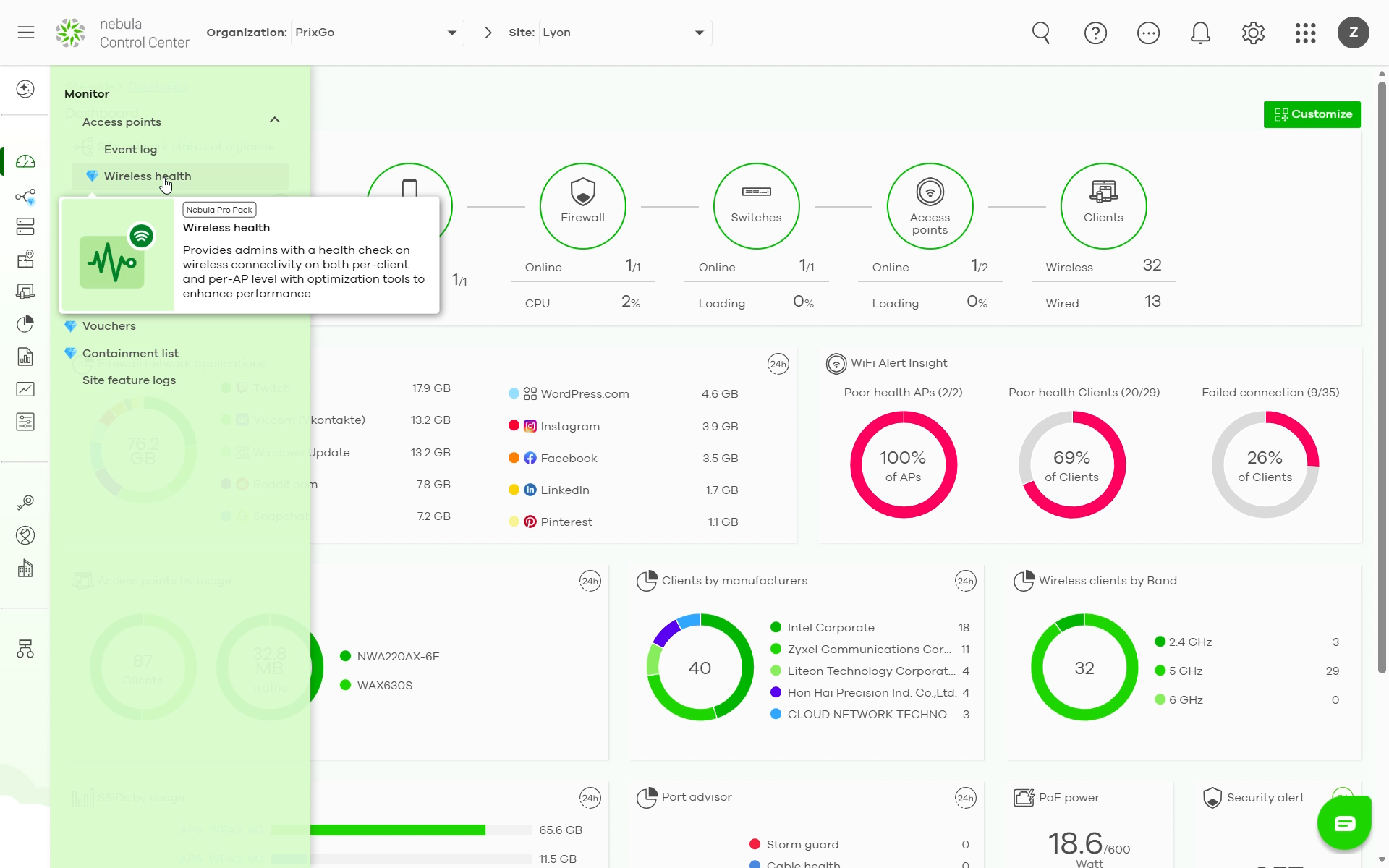
The page opens with two analytical panels and one configuration block. The AP wireless health overview categorizes every online AP into Good, Fair, or Poor status, viewable per band (6 GHz, 5 GHz, 2.4 GHz) over the last 24 hours, 7 days, or 30 days.

A Top APs by health alert table ranks devices by how many times they've been in poor state.

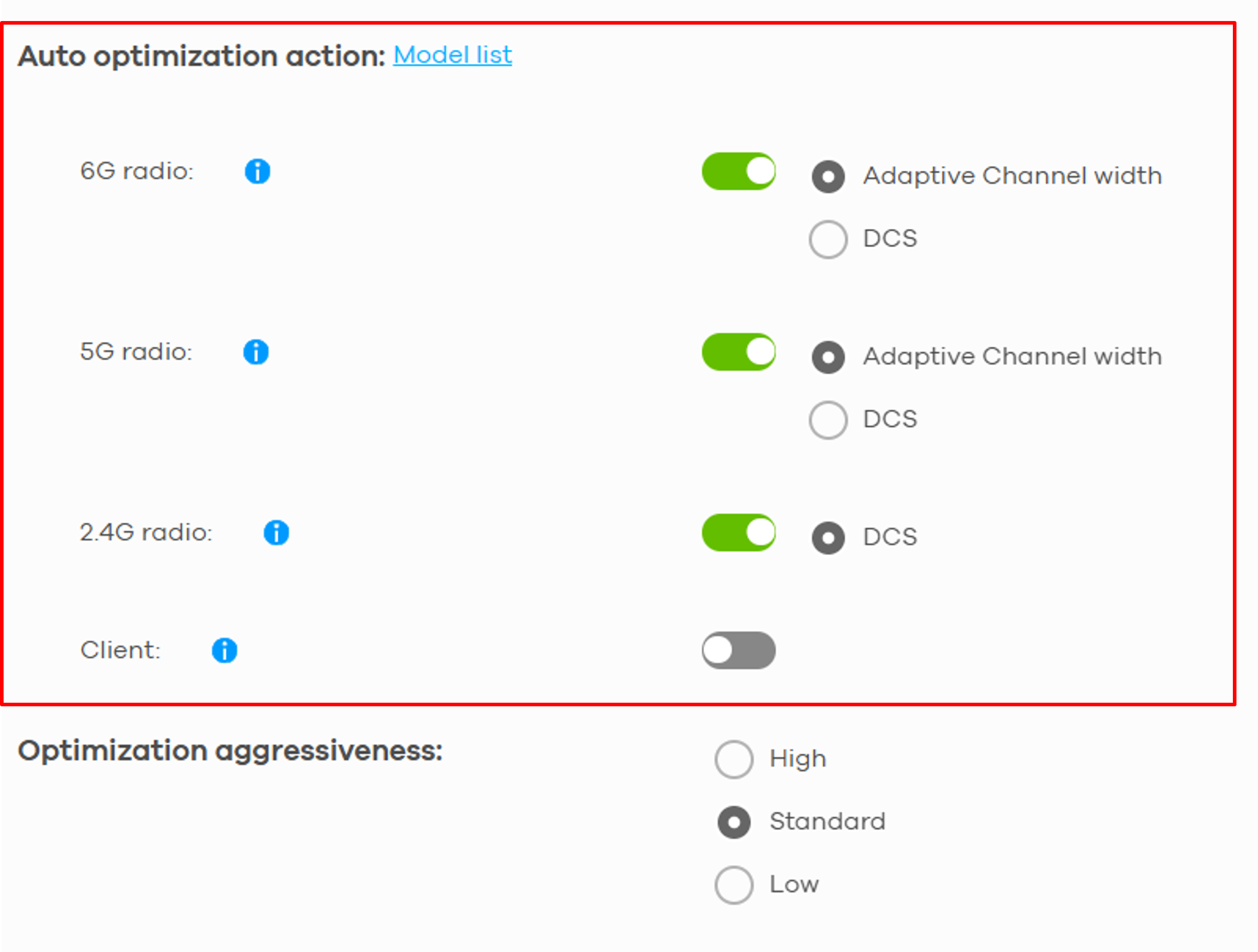
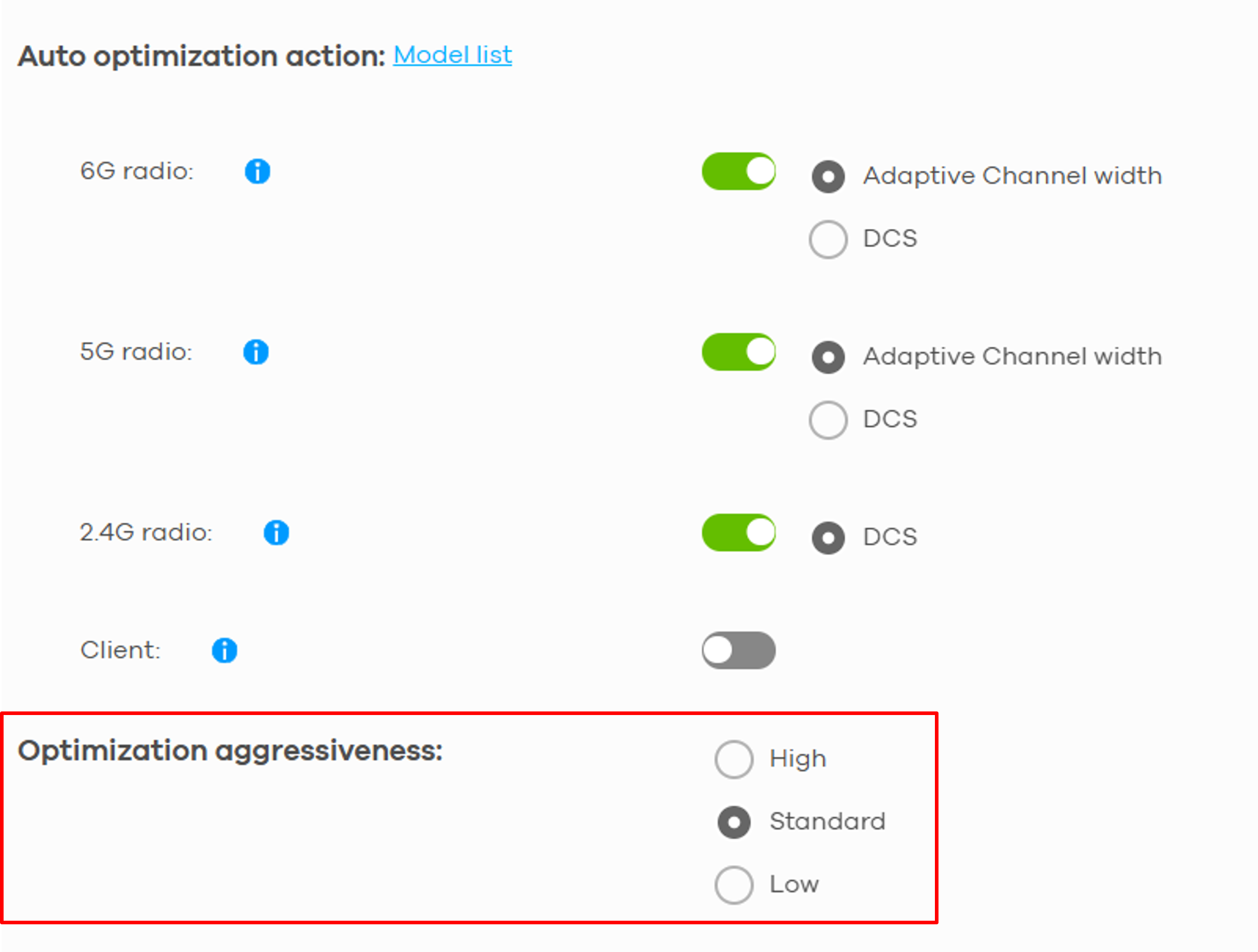
The Auto optimization block defines how the AP responds when health drops. You can enable auto optimization to take actions by DCS or changing channel bandwidth to improve wireless network if poor state has been detected.
| Action | Behavior |
|---|---|
| Adaptive Channel Width | Narrows channel from 160 MHz → 80 MHz, or 80 MHz → 20 MHz to reduce interference. Returns to original width once health recovers. |
| DCS | AP scans and selects the channel with least interference. The DCS channel is then locked for 4 hours to give clients a stable experience. |
| Client Steering | Every 30 minutes, the AP attempts to steer poor-health clients toward an AP or SSID with stronger signal, resolving sticky-client behavior. |
Optimization aggressiveness controls when remediation is allowed to run, based on current network busyness:
- Low only optimizes when traffic is below the Low threshold.
- Standard allows optimization at Low traffic.
- High permits optimization at Standard or Low traffic.
Note: There might be some disruption to the client’s WiFi connections while the AP is optimizing the WiFi network. To minimize disruption, you can decide to optimize the WiFi network only when the WiFi network is below a certain level of busyness.
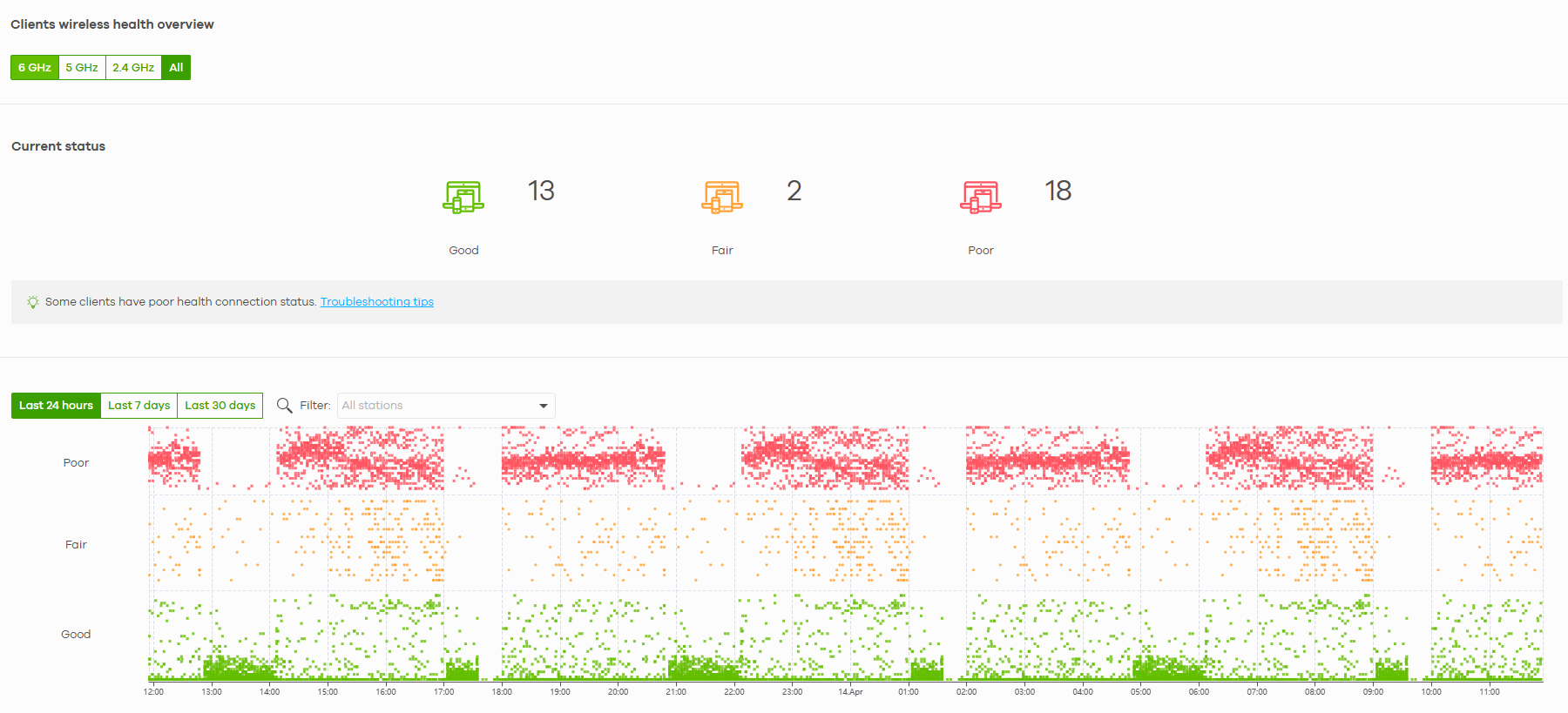
Below the AP panel, the Clients wireless health overview shows the current online clients’ status using the specified frequency band. Nebula calculates the health of clients and categories into 3 statuses: Good, Fair or Poor. You can select 6GHz, 5GHz, 2.4GHz or All to view the health report. The report can be shown for the Last 24 Hours, Last 7 days or Last 30 Days, as well as filter the wireless stations to view.
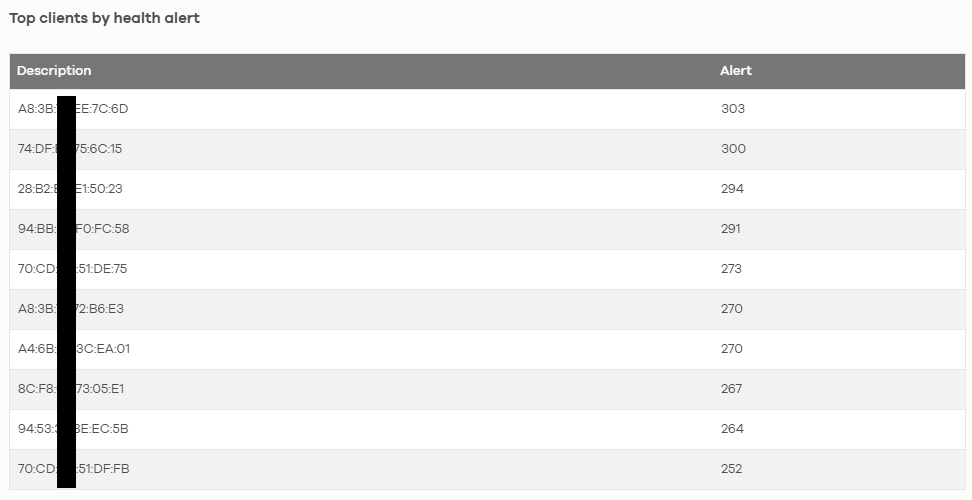
Top clients by health alert lists how many times the client is in a poor state
Detailed remediation events like channel changes, DCS triggers, client steering actions are recorded under:

From firefighting tickets to managing exceptions
Once Wireless Health is configured, the operating model for IT teams changes. Routine wireless degradation, the kind that previously generated tickets and required engineer time to diagnose, is resolved automatically by the AI/ML optimization workflow.
It comes with fewer reactive tickets, faster root-cause identification when human attention is needed, and a wireless network that scales across hundreds of APs and multiple sites without proportional growth in operational overhead. No sensor overlays, no add-on modules, just the Nebula APs already in place.
THE ACTIVATIONHow to activate Wireless Health feature?
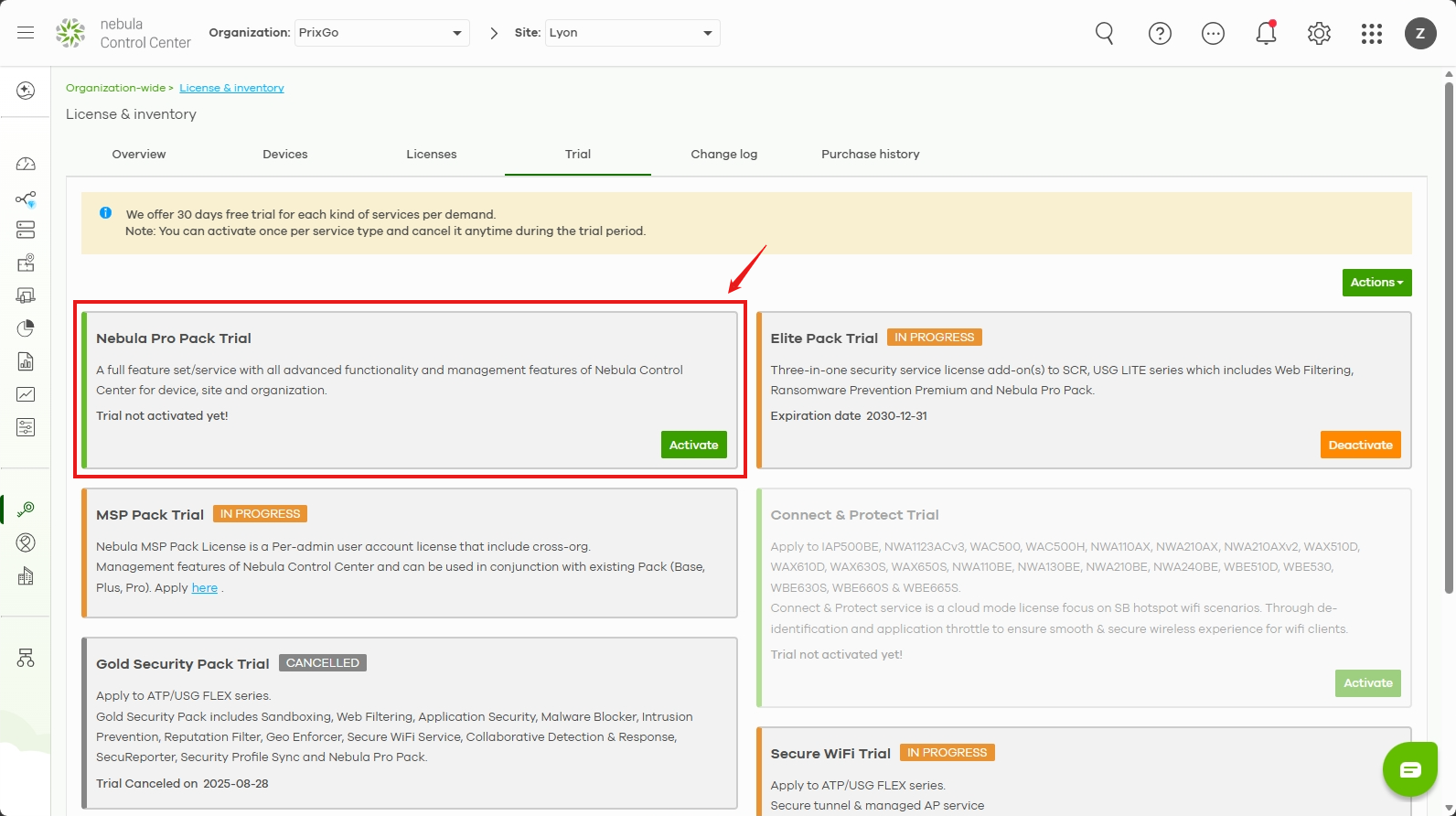
Nebula Wireless Health is included in the Nebula Pro Pack. If you are a Nebula Pro Pack user, you can start using this feature immediately. Or you may log into Nebula and activate the 30-day free trial of Nebula Pro Pack now to gain access.